
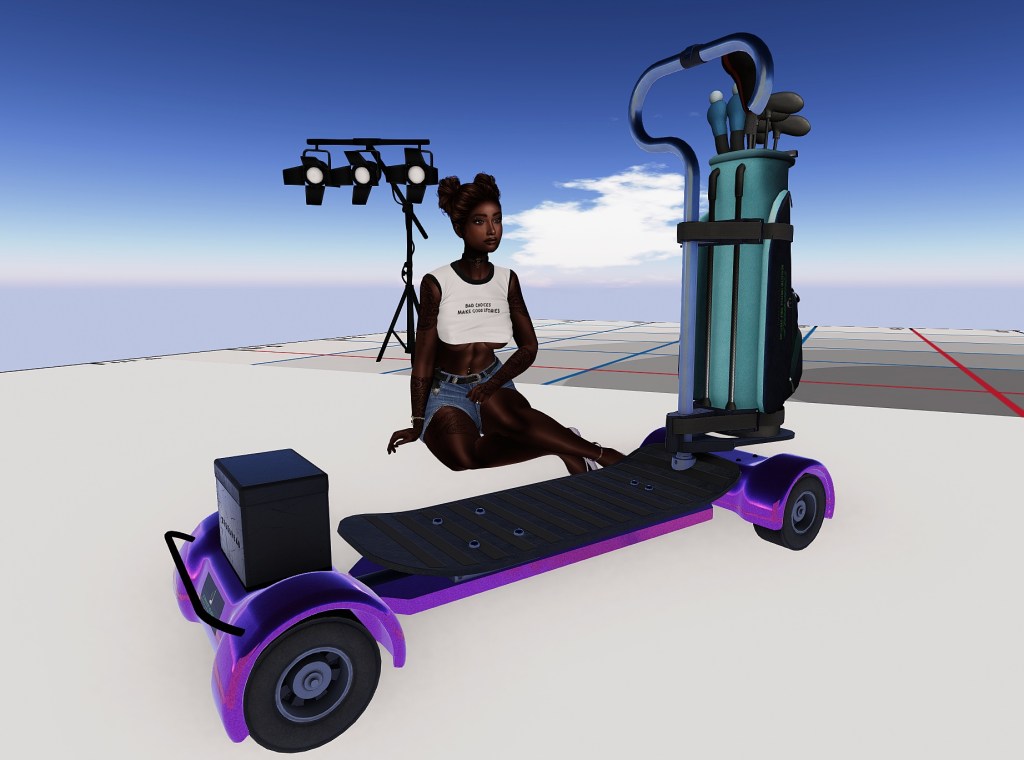
Even more DIY customization for your head-turning golf whip
Last time we talked about customizing your Steelhead Golfboard (available at Steelhead Outfitters, the Second Life Marketplace, or your favorite golf course pro shop), we looked at customizing the overall texture, golf bag, and nameplate of your sweet golf ride. I got one great comment from Jamie Bleach that made me realize I’m just not done.
Now if you could tell me how I can change the wheels… (I used chrome for this but it can’t really bring the shine to the rims) you would give me great pleasure.
(There’s a REALLY great cheeky little joke that I’m letting go by here. I just want everyone to appreciate how grown-up I am. For reals!)
Jamie hit on a fantastic idea that I hadn’t even considered – texturing the rims! I got out the hot purple golfboard from the last post and started some trial and error tinkering. It took a bit, but I figured it out.
GIVEAWAY! Let’s give more stuff away!!! Leave a comment at the end of this post for the color you’d want your golfboard to be. For me, it’s RED – what’s yours? I’ll pick one commenter at random and they’ll win their choice of a Steelhead Golfboard or a L$500 Steelhead/TrueGolf gift card. Make sure to include your SL username, and I’ll draw the winner on Sunday, February 23, at noon SLT!
Before we start, I want to make it clear that this is the way I figured out how to do it. Without a doubt there’s a better, more elegant way to do it, but I achieved the look I wanted going through these steps. Let’s get started.
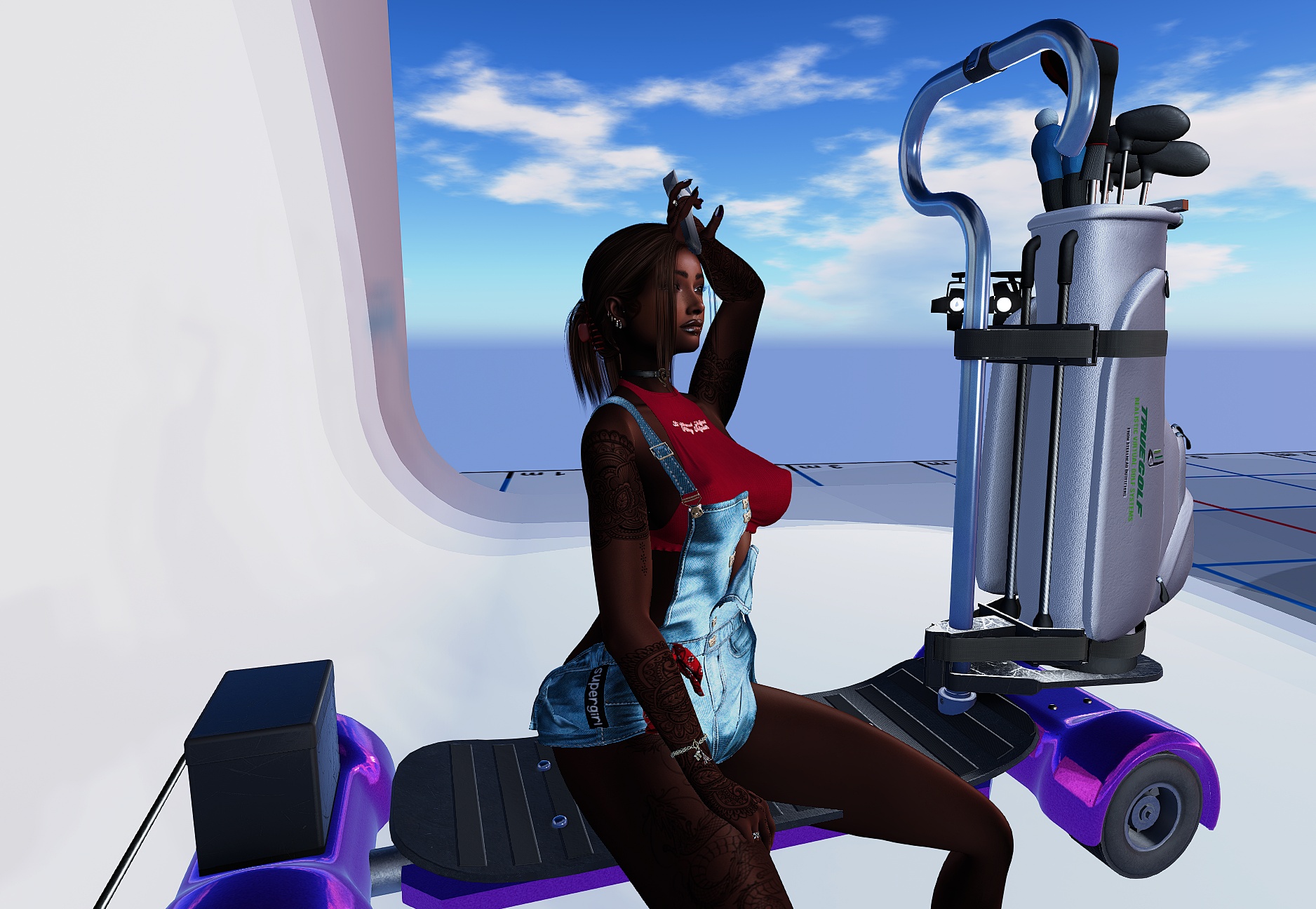
This is the hot purple golfboard as we left it after Pimp Your Golfboard I. We’re going to focus on the wheels today, so let’s get a closer look.

Zoom your camera in on the first wheel you’re going to work on, right-click your golfboard and select ‘Edit’. You should be looking at something like this on your viewer.
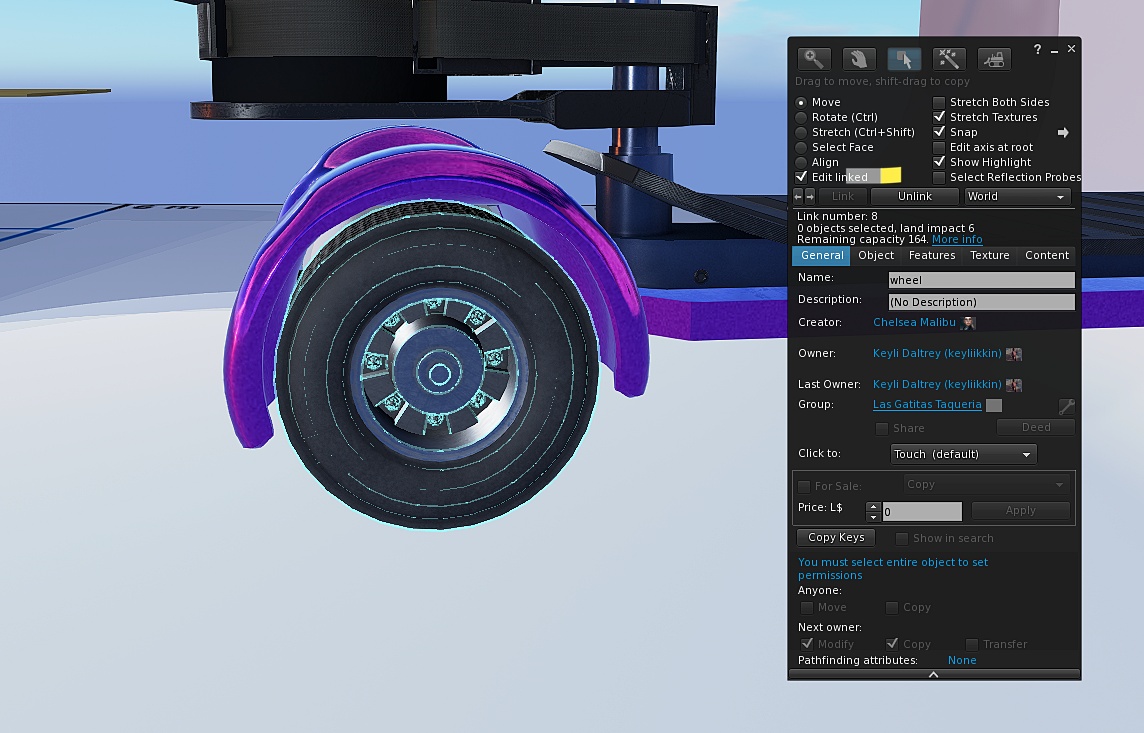
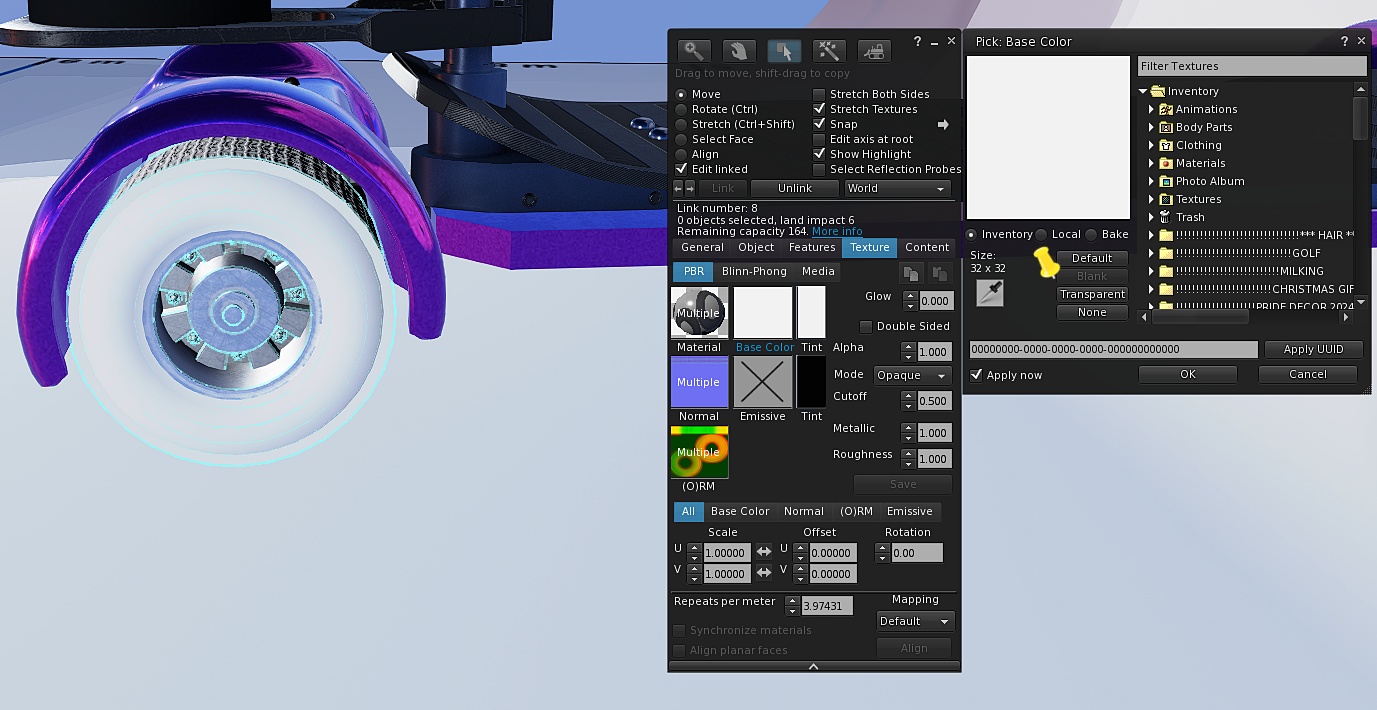
You’re looking for a checkbox on the edit window that says ‘Edit Linked’ – I’ve marked it on the image. Put a checkmark in that box, and then click on the wheel. You’ll know you have it right when it says ‘wheel’ next to Name in the General tab of the edit window (see above).
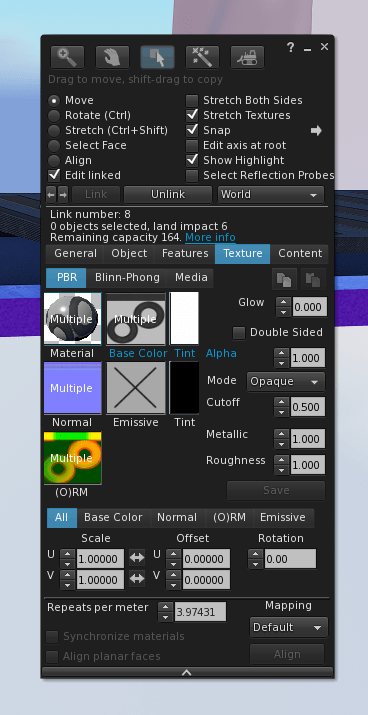
From here we want the Texture tab of the edit window, and you’re looking for the ‘Base Color’ window. Click that and another, smaller window will open. If you had a special texture you wanted to use for your wheels here, you could, but for my purposes I’m just changing the color. Hit Blank and your wheel should look like the one below. (I put a little yellow pin next to the Blank button, which is grayed out in my image.)
Close the ‘Pick: Base Color’ window that opened up and select the small window labeled ‘Tint’ back in the edit window. Now you should have a color picker window, and it’s time to go to work. For the hot purple board, I like the idea of a soft lavender for my tires, so I used a little trial and error and came up with this. (Don’t close the color picker window yet!)
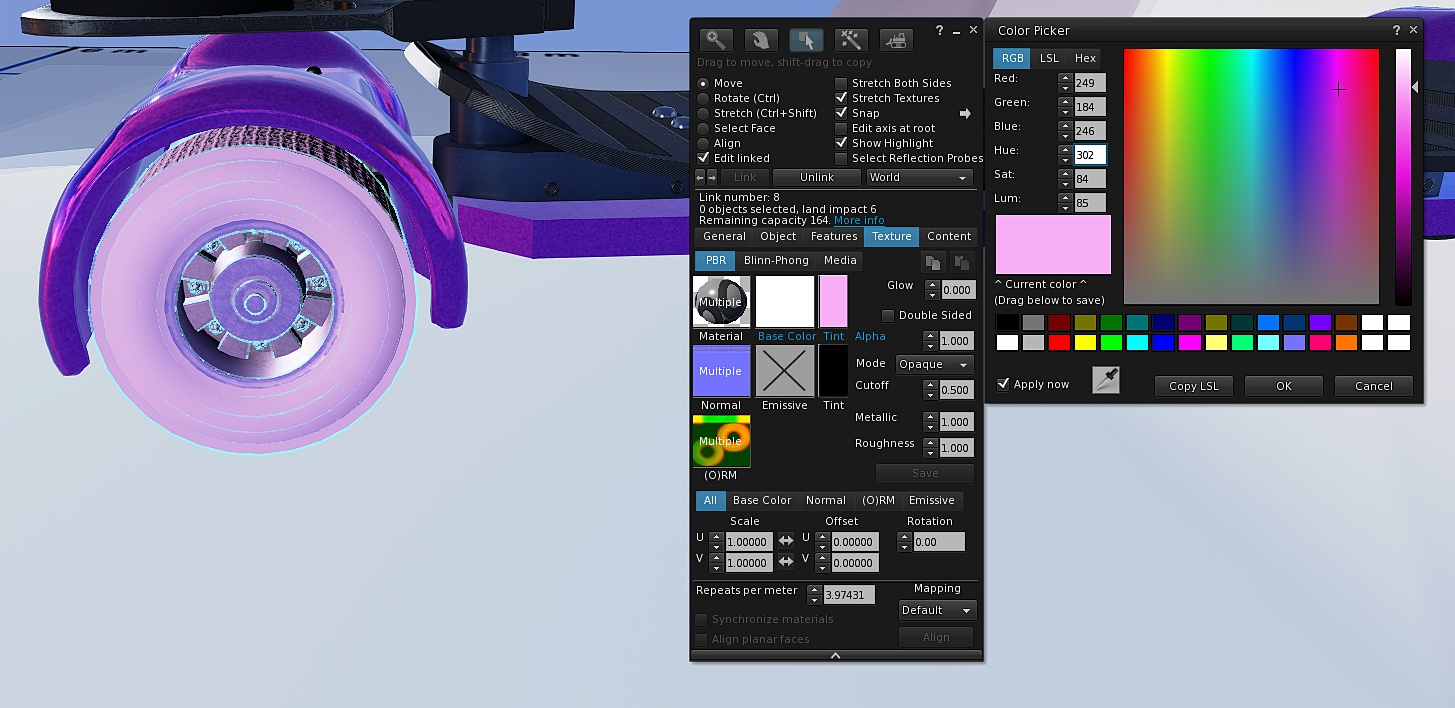
Cute, right? You’re going to have to repeat this process on every other tire. To maintain a uniform color on all four tires, I’d recommend using your mobile phone and shooting a picture of the color picker window, making sure you can clearly see all of the numbers under RGB (Red, Green, Blue, Hue, Sat., and Lum.). That way you can just re-enter those numbers when choosing the color on your other three tires, and they’ll all match perfectly!
(And no, of course you don’t have to shoot a picture of it with your mobile…you could always just write it down. I’m just supremely lazy and this was the way I did it.)
We’re not done. Jamie also mentioned that she would like to have chrome rims with more of a shine, which means we need to find a really shiny PBR chrome texture. I found this one from Surface Studio on the Second Life Marketplace for L$40. That’s the one I’m going to use.
Close the edit window and bring up your inventory. You’ll want to find the PBR texture you want to use and drag and drop it RIGHT ONTO THE RIM. Make sure you’re dropping it right on the rim and not the tire or the golfboard itself.

(Note: In the above animated gif, there are four PBR Chrome textures. I bought a pack of multiple chromes for future use, but the MP entry for the shiniest of the four is linked above.)
Again, you’re going to need to repeat the process on all four rims, but that’s it! I added v2.0 to the end of the name of this version of the Hot Purple golfboard and took it back into my inventory, ready for my next round!

Once again, this is only the way I managed to do this, and I’m almost certain there’s a better way. That said, this way did work, and I’m really happy with how it came out when I was done. If you decide to take a swing at this and get stuck, feel free to give me a shout (keyliikkin resident).
Thank you again to Jamie Bleach for the idea for this post, and I’m looking forward to our next round, Jamie!
Until next time, Fairways and Greens everyone!
Keyli
REMINDER! Drop a comment on this post with your SL username and the color you’d like for your Steelhead golfboard, and you just might win one (or a Steelhead/TrueGolf gift card for L$500). Don’t waste time though – I’m giving this away at noon SLT on Sunday, February 23!





 The Second Links Traveler
Leave a comment